Running LLMs in Docker With GPU Access
A container can only use the GPU if the host driver, the NVIDIA Container Toolkit and the image agree. Here is what each piece does, where model files should live, and how to spot a model quietly running on the CPU.
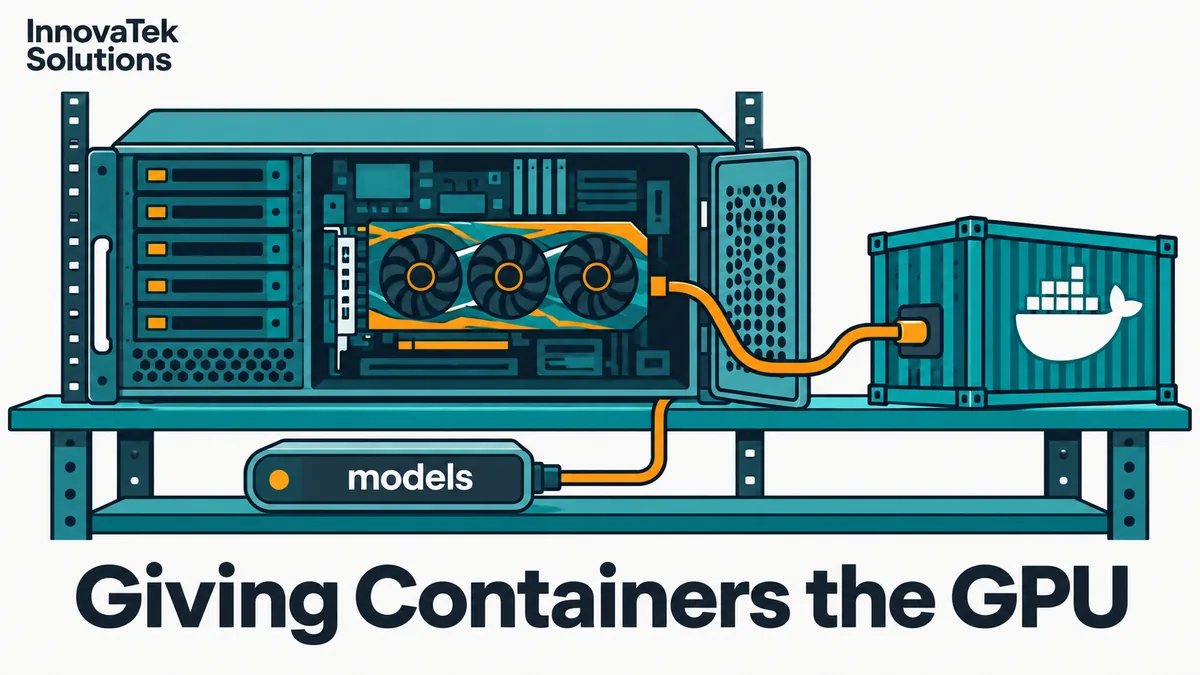
Start Ollama's official image without one flag and it runs fine, answers requests, and never touches the graphics card. The GPU command from the Ollama docs is docker run -d --gpus=all -v ollama:/root/.ollama -p 11434:11434 --name ollama ollama/ollama; drop --gpus=all and the same model loads into system RAM and generates text many times slower, with no error anywhere. That is the central lesson of trying to run an LLM in Docker with GPU access: the failure mode is a slow success, so you have to check, not assume.
Commands below follow the NVIDIA, Docker, Ollama and vLLM documentation as of October 2026.
What the NVIDIA Container Toolkit actually does
A container is an isolated process. By default it cannot see the host's /dev/nvidia* device files, and it does not have the driver's user-space libraries, such as libcuda.so and the NVML library that nvidia-smi uses. The NVIDIA Container Toolkit closes that gap. When a container is started with a GPU request, the toolkit's runtime hook mounts the device nodes and the matching driver libraries from the host into the container just before it starts.
So the GPU driver is installed once, on the host, never inside the image. The image carries the CUDA runtime and the application (PyTorch, llama.cpp, vLLM), and borrows the driver from the host at start time.
Setup on Ubuntu is short. Install the host driver through the distribution's package manager, add NVIDIA's apt repository, install the nvidia-container-toolkit package (version 1.20.1 in the install guide in October 2026), then register the runtime with Docker:
sudo nvidia-ctk runtime configure --runtime=docker
sudo systemctl restart docker
The first command edits /etc/docker/daemon.json. The CUDA toolkit does not need to be installed on the host for this. Then run NVIDIA's own test:
sudo docker run --rm --runtime=nvidia --gpus all ubuntu nvidia-smi
A plain ubuntu image has no NVIDIA software in it, so if it prints the usual GPU table, the toolkit works. Get this passing before involving any model server; it separates host problems from image problems.
Which GPUs a container sees
--gpus all hands every GPU to the container. On a server with two or more cards, you often want one model per card. Two ways are documented:
- The
NVIDIA_VISIBLE_DEVICESenvironment variable takes GPU indexes or UUIDs,allornone. NVIDIA's CUDA base images set it toallby default. - In Docker Compose,
device_ids: ['0']picks specific cards, whilecount: 1asks for a number of them. The two are mutually exclusive.
NVIDIA_DRIVER_CAPABILITIES decides which driver libraries get mounted. The default is compute,utility, which covers CUDA and nvidia-smi. Setting it replaces the default instead of adding to it, so a value of video alone would remove CUDA. Leave it unset for LLM serving.
The three pieces that must match
| Piece | Lives where | Updated by |
|---|---|---|
| NVIDIA driver | Host kernel and host libraries | Host package manager, often with a reboot |
| NVIDIA Container Toolkit | Host | Host package manager |
| CUDA runtime and app | Inside the image | Pulling a new image tag |
The rule that matters: the host driver must be new enough for the CUDA version the image was built against. NVIDIA's compatibility table, as of October 2026, lists driver 525 or newer for CUDA 12.x applications and driver 580 or newer for CUDA 13.x. A newer driver runs older CUDA images; an older driver cannot run newer ones, outside a forward-compatibility package that only some datacenter and professional GPUs support.
Work it through. A host has driver 550 installed. An image built on CUDA 12.4 needs at least 525, and 550 is at least 525, so it runs. A newer image tag of the same server, rebuilt on CUDA 13, needs at least 580, and 550 is less than 580, so it does not. Official CUDA base images declare their requirement in NVIDIA_REQUIRE_CUDA, and the toolkit refuses to start such a container on a driver that is too old. That is a loud failure, which is the good kind. Images built some other way may start anyway and then fail to initialize CUDA, which pushes some servers onto the CPU.
Two practical consequences follow. Pin image tags instead of tracking :latest, so a routine docker compose pull cannot jump CUDA major versions under you. And upgrade the host driver first, test with the nvidia-smi container, and only then pull images that need it.
Put model files on a volume, never in the container
A model file is large and the container is disposable. Anything written to the container's own filesystem disappears when the container is removed, which happens on every image upgrade with docker compose up after a pull. Without a volume, each upgrade re-downloads every model.
The arithmetic makes the case. Say an office keeps three models of roughly 5 GB, 9 GB and 20 GB, 34 GB in total. On a 100 Mbit/s internet line, which moves at most 12.5 MB per second, that is 34,000 MB divided by 12.5, or 2,720 seconds: about 45 minutes of downtime per upgrade, before counting a slow mirror. With a volume, the new container finds the files in place and loads them in the time it takes to read them from disk.
Where each server expects its files:
- Ollama keeps models under
/root/.ollamain its image. The documented command mounts a named volume calledollamathere. - vLLM reads from the Hugging Face cache, and its documented command mounts the host's
~/.cache/huggingfaceat/root/.cache/huggingface. The vLLM docs also suggest a named volume at/root/.cache/vllmso compiled artifacts survive between containers. - llama.cpp server takes a path to a GGUF file, so mount the directory that holds it, read-only.
A bind mount to a host directory (/srv/models:/models) is easier to back up and inspect than a named volume under /var/lib/docker. Put it on a fast SSD, since load time is mostly disk read speed. For an air-gapped deployment, the volume is also how models arrive: copy files onto the host directory, then start the container, with no download step at all.
Shared memory for multi-process servers
vLLM uses PyTorch, which passes data between worker processes through shared memory, especially when one model is split across several GPUs. Docker's default shared memory allowance is small, so the vLLM docs require either --ipc=host or an explicit --shm-size. Their example:
docker run --runtime nvidia --gpus all \
  -v ~/.cache/huggingface:/root/.cache/huggingface \
  -p 8000:8000 --ipc=host \
  vllm/vllm-openai:latest --model Qwen/Qwen3-0.6B
Replace :latest with a pinned version for anything shared. Whether vLLM or Ollama fits the workload is a separate question, covered in the Ollama vs vLLM comparison.
Compose files for a service that stays up
For a shared server, a versioned Compose file beats a long docker run line:
services:
  ollama:
    image: ollama/ollama:<pinned-version>
    ports:
      - "127.0.0.1:11434:11434"
    volumes:
      - /srv/models/ollama:/root/.ollama
    restart: unless-stopped
    deploy:
      resources:
        reservations:
          devices:
            - driver: nvidia
              count: 1
              capabilities: [gpu]
Docker's documentation is explicit that capabilities is required; leave it out and deployment returns an error. Leave out both count and device_ids and the service gets every GPU on the host. Binding the port to 127.0.0.1 keeps the model server off the network until a reverse proxy with authentication sits in front of it, because Docker's published ports otherwise listen on all interfaces.
The quiet CPU fallback, and how to catch it
Many LLM servers treat a missing GPU as acceptable: they log a line, load the model into system RAM and keep serving. Users notice only that answers got slow, and blame the model.
The typical causes, roughly in the order worth checking:
- No GPU request. The container was started without
--gpusor the Composedevicesblock. - Toolkit not registered. The package is installed but
nvidia-ctk runtime configurewas never run, or Docker was not restarted afterward. - Driver too old for the image. Described above; most likely right after pulling a new image tag.
- GPU lost mid-life. NVIDIA's troubleshooting guide documents containers that start on the GPU and later fail with
Failed to initialize NVML: Unknown Error. On hosts where systemd manages cgroups, asystemctl daemon-reload(which package installs often trigger) can strip the GPU access the toolkit added. Ollama's troubleshooting page describes the same pattern as a model that works on the GPU and then switches to CPU.
For the last case, NVIDIA says the affected container has to be deleted and recreated. Both docs give the same lasting fix: set Docker's cgroup driver to cgroupfs with "exec-opts": ["native.cgroupdriver=cgroupfs"] in /etc/docker/daemon.json. NVIDIA also names a second option, CDI (Container Device Interface) device injection, which writes the device nodes into the container's configuration so a reload cannot strip them. Since toolkit 1.18, an nvidia-cdi-refresh systemd service regenerates the CDI spec when the driver changes.
A three-command check
Run these after every deploy and upgrade:
docker exec ollama nvidia-smi
docker logs ollama 2>&1 | grep -i -E "gpu|cuda"
docker exec ollama ollama ps
The first proves the container sees the card, the second shows what the server detected at startup, and the third is definitive for Ollama: its PROCESSOR column reads 100% GPU when the model is fully on the card, 100% CPU when it fell back entirely, and a split such as 48%/52% CPU/GPU when the model did not fit in VRAM. A split is a sizing problem; see how much VRAM a model needs. For vLLM, which is built for the GPU, a missing device usually stops it at startup, so the logs are the place to look.
Wire the same check into ongoing alerting so that a fallback at 3 a.m. pages someone instead of waiting for complaints; monitoring a self-hosted LLM covers which signals to collect. A simple decision rule: if ollama ps or GPU memory use from nvidia-smi does not show the model on the card, treat the deploy as failed, whatever the health endpoint says.
Frequently asked questions
Does Docker add noticeable overhead to LLM inference?
The container shares the host kernel and driver, so GPU work runs as it would outside Docker. Differences usually come from configuration, such as a small shared memory limit or models on slow storage.
Can AMD GPUs be used in Docker the same way?
Not with the NVIDIA toolkit. AMD cards are passed through by mapping the /dev/kfd and /dev/dri devices into the container and using an image built for ROCm, such as Ollama's rocm tag. Check the model server's documentation for its current AMD instructions and supported cards.
Does the host need the CUDA toolkit installed?
No. The host needs the NVIDIA driver and the NVIDIA Container Toolkit. The CUDA runtime libraries ship inside the image, which is why different containers on one host can use different CUDA versions, as long as the driver is new enough for the newest of them.
Can two containers share one GPU?
Yes. Both can be given the same device, and each claims VRAM as it loads models. Nothing stops one from taking memory the other needs, so the second model may fail to load or fall back to the CPU. Add up the memory each model needs before co-locating them, or give each container its own card with device_ids.
Ready to Modernize Your Business?
Get your AI automation roadmap in minutes, not months.
Analyze Your Workflows →