Running Ollama on Windows Server
Ollama's Windows installer is built for a desktop user who logs in. On a server that nobody logs in to, the install method, the service wrapper, the model folder and the firewall rule all need deliberate choices.
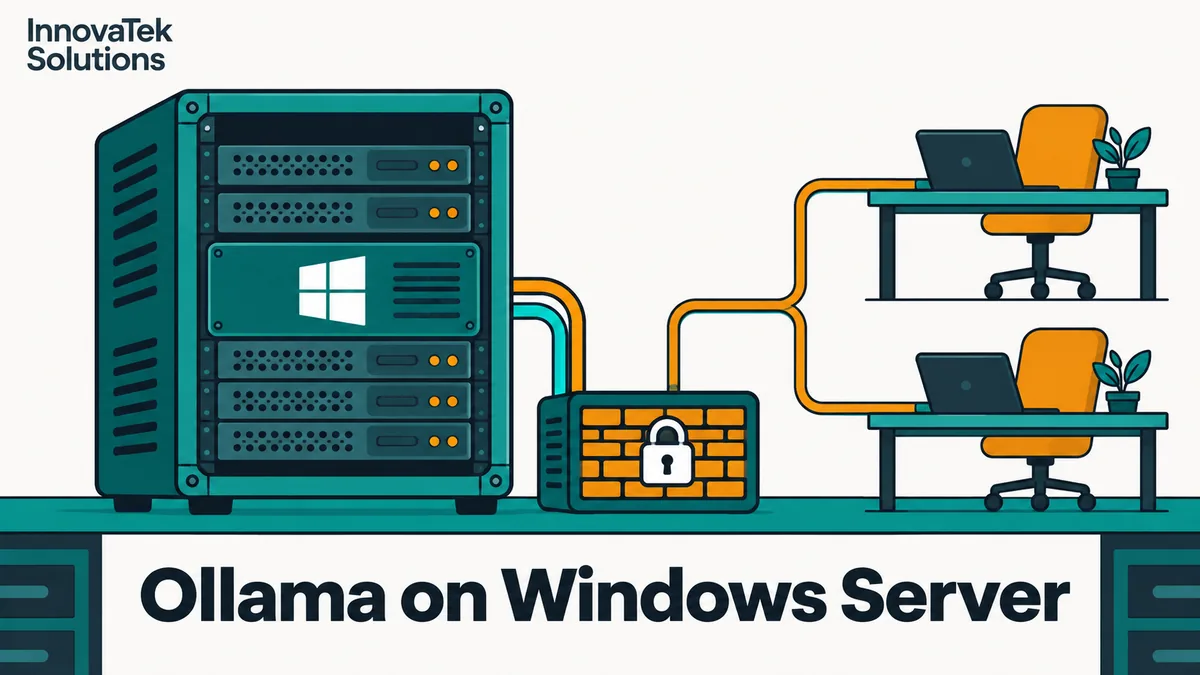
Ollama's Windows documentation, as of October 2026, lists Windows 10 22H2 or newer, Home or Pro, as the requirement. Windows Server is not on that list. The installer needs no administrator rights, puts the program under the installing user's home folder, and runs Ollama in the background for that user, with a tray application. Running Ollama on Windows Server, where nobody logs in and the box must answer requests after a reboot at 3 a.m., means undoing that assumption: picking between a native install and WSL2, wrapping the server in a real Windows service, putting models on a data disk, and opening exactly one port to exactly the right machines.
Because Server is not a listed platform, test this setup on your own build before staff depend on it. The office-wide settings (keep-alive, parallel requests, a proxy with authentication) are the same on every operating system and are covered in running Ollama as a shared office service. This article covers only what is different on Windows.
Native install or WSL2: the first decision
There are two ways to get Ollama onto a Windows Server box.
Native. Ollama runs as a Windows program and talks to the GPU through the Windows driver. The docs name an NVIDIA driver of version 551.61 or newer, and for AMD either a ROCm v7 capable driver stack or a Vulkan capable Radeon driver.
WSL2. Microsoft supports WSL on Windows Server 2019 (version 1709) and later. On Server 2022 and 2025, one command in an administrator PowerShell, wsl.exe --install, enables the components, sets WSL 2 as the default and installs Ubuntu, after a restart. You then run the Linux build of Ollama inside that Linux environment, with systemd and all the Linux instructions that come with it.
WSL2 looks attractive because every Linux guide then applies. On a server it carries three costs:
| Concern | Native | WSL2 |
|---|---|---|
| GPU support | Windows driver, documented by Ollama | NVIDIA's WSL guide requires WDDM mode; TCC mode and Tesla-class cards are listed as not yet supported |
| LAN access | Bind address plus one firewall rule | NAT by default: needs a port proxy, or mirrored networking (documented for Windows 11 22H2 and later) |
| Start at boot | One Windows service | A Windows-side task to start the WSL instance, then systemd inside it |
The GPU row decides it for many servers. Data center cards installed in Windows Server commonly run under the TCC driver model, which is meant for compute without a display. NVIDIA's CUDA on WSL guide states that GPU acceleration covers Pascal and later cards in WDDM mode, and that Quadro cards in TCC mode and Tesla cards are not yet supported. It also lists limits on nvidia-smi queries inside WSL. If your card is a workstation or consumer model in WDDM mode, WSL2 will work. If it is a data center card, native is the safer path.
A rule that holds up: if the Windows Server exists because the rest of the business runs on Windows and the GPU box must join the domain and be patched like everything else, install natively. If you only chose Windows because that was the license on hand, a plain Linux install on the same hardware is simpler than WSL2, and running models in Docker with GPU access opens up from there.
Install for the machine, not for one user
The normal installer, OllamaSetup.exe, writes binaries to %LOCALAPPDATA%\Programs\Ollama, logs to %LOCALAPPDATA%\Ollama and models to %HOMEPATH%\.ollama. All three live inside whichever profile ran the installer. On a server, that profile is usually an administrator's, which is the wrong owner for a shared service.
Two options from the Ollama docs fix this:
- Install to a fixed folder.
OllamaSetup.exe /DIR="D:\Ollama"puts the program outside any user profile. The tray application still belongs to whoever ran the installer, so this alone does not make Ollama a machine-wide service. - Use the standalone build. The docs describe
ollama-windows-amd64.zip, which holds the CLI and NVIDIA GPU libraries and is meant for embedding Ollama or running it as a service. AMD cards need the extraollama-windows-amd64-rocm.zippackage. Unzip both into one folder such asD:\Ollama. When upgrading, the docs say to remove the old directories first rather than unzipping on top.
For a server, the zip is the cleaner choice. Nothing launches at login, nothing sits in the tray, and the only process is the one your service starts. It also avoids a quiet conflict: the tray app and a service cannot both listen on port 11434.
Running Ollama as a Windows service
ollama.exe serve is an ordinary console program, not a Windows service binary, so it needs a wrapper. The Ollama docs name NSSM, the Non-Sucking Service Manager, as one such tool. Its usage page documents the commands below; run them from an administrator prompt:
nssm install Ollama D:\Ollama\ollama.exe serve
nssm set Ollama AppDirectory D:\Ollama
nssm set Ollama AppEnvironmentExtra OLLAMA_HOST=0.0.0.0:11434 OLLAMA_MODELS=E:\ollama\models
nssm set Ollama AppStdout D:\Ollama\logs\server.log
nssm set Ollama AppStderr D:\Ollama\logs\server.log
nssm set Ollama AppRotateFiles 1
nssm set Ollama AppRotateOnline 1
nssm set Ollama AppExit Default Restart
A few lines deserve explanation.
AppEnvironmentExtrapasses settings to this one service; NSSM stores them as a multi-line value, oneKEY=VALUEper line. If your NSSM build keeps only the first pair from the command line, opennssm edit Ollamaand enter both on the Environment tab. This matters because the FAQ says Ollama on Windows inherits user and system environment variables, and a variable you set for your own account is invisible to a service running under another account.- The same path for stdout and stderr lets NSSM write both streams to one log in order. By default NSSM rotates the file only when the service starts or restarts, so on a server that runs for months
AppRotateOnlineis what stops the log from growing until the disk fills. AppExit Default Restartrestarts the server if it exits, the Windows counterpart ofRestart=alwaysin a systemd unit.
Check which account the service runs as on the Log On tab. LocalSystem has broad rights on the machine; a dedicated local or domain service account with read and write access only to the Ollama and model folders is the tighter option; set it with the ObjectName setting or in the service's Log On tab in services.msc. Then set the startup type to Automatic, start the service, and check that http://localhost:11434 answers on the server itself before going further.
Model storage on a data disk
The FAQ gives the default Windows model folder as C:\Users\%username%\.ollama\models. For a service that path follows the service account's profile, which nobody looks at and which sits on the system drive. The docs also warn that models range from tens to hundreds of gigabytes.
Do the arithmetic for a modest catalog. Three models at about 20 GB each, two at about 5 GB, and room to test one new 20 GB model beside the old version: 3 x 20 + 2 x 5 + 20 = 90 GB. A 120 GB system volume that also holds Windows, its updates and the page file cannot absorb that. Point OLLAMA_MODELS at a separate data volume, as in the NSSM command above, and give the service account write access to that folder.
Two Windows-specific details:
- The Ollama uninstaller does not remove models stored in a custom location. That is convenient for upgrades and a leftover to remember when decommissioning the server.
- Real-time antivirus scanning of multi-gigabyte model files can slow loading. Whether to exclude the model folder is a security decision, not a speed tweak, so make it with whoever owns endpoint protection.
Binding and the firewall for LAN access
Ollama binds 127.0.0.1:11434 by default, and OLLAMA_HOST changes that. Ollama has no login, so whoever can reach the port can use the model. The two sound patterns, an authenticating proxy on the same box (IIS or nginx on Windows) or a LAN binding narrowed by the firewall, are compared in the shared-service article linked above.
If you bind to the LAN, write the firewall rule so it names the source as well as the port:
New-NetFirewallRule -DisplayName "Ollama API from app server" -Direction Inbound -Protocol TCP -LocalPort 11434 -RemoteAddress 10.0.20.15 -Action Allow
-RemoteAddress accepts single addresses, subnets and keywords such as LocalSubnet. Naming the one application server or reverse proxy that should call Ollama is far tighter than LocalSubnet, which admits every laptop on the segment. If a Windows prompt ever asks whether to allow ollama.exe on public and private networks, decline it and rely on the explicit rule, so there is exactly one rule to audit. Patching, TLS and the rest of the hardening list are in securing a local LLM server.
If you chose WSL2 anyway
Under the default NAT mode, the WSL2 instance has its own internal address, and LAN clients cannot reach it directly. Microsoft documents a port proxy on the Windows side:
netsh interface portproxy add v4tov4 listenport=11434 listenaddress=0.0.0.0 connectport=11434 connectaddress=<WSL instance address>
Ollama inside WSL must then listen on more than its loopback address, and you still need the inbound firewall rule above. The WSL address can change when the instance restarts, so the port proxy needs refreshing at boot. Mirrored networking avoids this, but Microsoft documents it for Windows 11 22H2 and later, so confirm it behaves on your Server build before relying on it.
Frequently asked questions
Does Windows Server need a desktop GPU driver or a data center driver?
It needs whatever driver NVIDIA or AMD publishes for that card on that Windows Server version, at or above the minimum Ollama lists (551.61 for NVIDIA as of October 2026). The driver model matters more than the package name for WSL2, because WSL GPU support requires WDDM mode. For a native install, confirm after setup that the server log reports the GPU and that a loaded model shows GPU use in ollama ps.
Can Ollama run on Server Core without a desktop?
The standalone zip plus a service wrapper has no user interface to depend on, which is the shape Server Core needs. Microsoft also documents WSL on Server Core for 2025 and, with manual steps, for 2019 and later. Server Core is not a platform Ollama names, so test the full start, pull and inference cycle there before committing.
What does upgrading a service-based install involve?
Stop the service, delete the old program folder as the Ollama docs advise, unzip the new release into the same path and start the service again. Models in OLLAMA_MODELS on the data disk are untouched. Keep the previous zip until a few real requests have succeeded on the new version, so a rollback is a matter of swapping folders.
Is a scheduled task at startup good enough instead of a service?
It can work. A service wrapper adds two things a bare task lacks: the program's output captured to a rotating log, and a restart policy defined in one place alongside the environment settings. For anything staff rely on during the working day, a service also shows up where Windows administrators already look, in services.msc and the service monitoring they already run.
Ready to Modernize Your Business?
Get your AI automation roadmap in minutes, not months.
Analyze Your Workflows →